QR CODE – Link to This Page

Scan to access these instructions on your phone
22 Howard Street, Melbourne
Network: GF Board Room WiFi
Password: PF39429#
What would you like to do?
Teams, Zoom, Google Meet, etc.
Network: GF Board Room WiFi
Password: PF39429#
When you plug in the USB-C cable, you get:
• Your laptop screen on the display
• Conference camera and microphone
• Wireless keyboard and touchpad
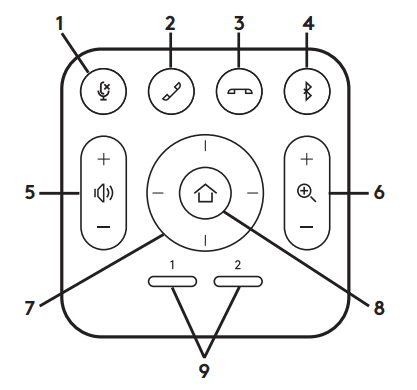
• Remote control for camera adjustments
The USB-C cable is located on the right side of the display at the bottom. Plug it into your laptop’s USB-C port. Your laptop screen should appear on the display automatically.
⚠️ Important: Do not remove the cable from the dock unless it’s faulty. A spare cable is available onsite – contact the office manager if needed.
In your video conferencing app (Teams, Zoom, etc.):
Camera: Select “Logitech MeetUp”
Microphone: Select “Logitech MeetUp”
Speaker: Select “Logitech MeetUp”
1. Press the power button on the front of the display
2. Tap the white X at the bottom of the screen
3. Choose YES when prompted “Do you want to exit?”
4. Tap the downward arrow at the top center
5. Select: Import → PC → HDMI 1
Your laptop may be too old to support USB-C. Try the wireless connection methods instead.
No. Use the provided cable only. It’s specifically configured for this system.
This is common. If charging is too slow, plug your own charger into a separate USB-C port on your laptop (look for the power/lightning bolt symbol).
Windows: Press Windows Key + X → Device Manager → Check “Cameras” and “Sound, video and game controllers”
Mac: System Settings → Privacy & Security → Camera (and Microphone) → Ensure app has permission
Then in your video app: Settings/Preferences → Audio & Video → Select “Logitech MeetUp”
1. Check batteries in the keyboard
2. Try connecting another laptop to rule out laptop-specific issues
1. Mute your laptop speakers – the Logitech MeetUp has built-in speakers
2. In your video app, ensure audio output is set to “Logitech MeetUp”
3. Reduce speaker volume using the Logitech remote control
4. Make sure no one else in the room has their laptop audio unmuted
Choose your device type
Network: GF Board Room WiFi
Password: PF39429#
Click the AirPlay icon in your menu bar (top right of screen). If you don’t see it, go to System Settings → Displays → Show mirroring options when available.
Choose “GF Board Room Display” from the list of available displays.
If prompted, enter the 4-digit code shown on the TV screen.
💡 Tip: For best quality, select “Mirror Built-in Display” or choose the display resolution that matches your screen.
• Make sure you’re connected to the correct WiFi network
• Try turning WiFi off and on
• Restart your Mac if the display doesn’t appear
• Display not showing? This can be common as the screens are aging – use the cable connection instead for better reliability
• Test connection: speed test
Network: GF Board Room WiFi
Password: PF39429#
Press Windows Key + K to open the Connect panel.
Choose “GF Board Room Display” from the list of available wireless displays.
If prompted, enter the PIN shown on the TV screen.
💡 Note: Miracast may not work on all Windows laptops. If you don’t see the display, try using the cable connection instead.
If wireless doesn’t work, plug “GF BOARD ROOM ADAPTER” into your laptop’s HDMI port (or USB-C to HDMI) and the display will automatically switch.
• Ensure you’re on the room’s WiFi
• Update your display drivers
• Try the cable connection if wireless fails
• Display not showing? This can be common as the screens are aging – use the cable connection instead for better reliability
• Test connection: speed test
Network: GF Board Room WiFi
Password: PF39429#
Open YouTube, Netflix, Disney+, or any app that supports Chromecast.
Look for the Cast icon (a rectangle with WiFi waves) in your app, usually in the top right corner.
Choose “GF Chromecast” from the list of available devices.
Select what you want to watch. It will play on the room display while you can control it from your device.
💡 Tip: Your phone/tablet becomes the remote control. You can pause, skip, and adjust volume from your device.
• Make sure you’re on the room WiFi
• Restart the streaming app if you don’t see the Cast icon
• Some apps may require a subscription
• Test connection: speed test
Network: GF Board Room WiFi
Password: PF39429#
Open Spotify, Apple Music, or another streaming service.
Look for the speaker/device icon in your music app and select “GF Board Room”.
Method 1 – Spotify (Easiest):
Tap the speaker icon at bottom of screen → Select “GF Board Room”
Method 2 – Apple Music (iPhone/iPad):
1. Open Control Center (swipe down from top right)
2. Long-press the music widget
3. Tap the AirPlay icon
4. Select “GF Board Room”
Method 3 – Other Services (Android):
For other music services on Android, you can stream via Google TV instead:
• Ensure you’re connected to the room WiFi
• Restart your music app if you don’t see the speaker
• Some services may require a premium subscription
• Test connection: speed test
Network: LVL3 Board Room WiFi
Password: PFlevel3#
What would you like to do?
Teams, Zoom, Google Meet, etc.
Network: LVL3 Board Room WiFi
Password: PFlevel3#
When you plug in the USB-C cable, you get:
• Your laptop screen on the display
• Conference camera and microphone
• Wireless keyboard and touchpad
• Remote control for camera adjustments
The USB-C cable is located on the right side of the display at the bottom. Plug it into your laptop’s USB-C port. Your laptop screen should appear on the display automatically.
⚠️ Important: Do not remove the cable from the dock unless it’s faulty. A spare cable is available onsite – contact the office manager if needed.
In your video conferencing app (Teams, Zoom, etc.):
Camera: Select “Logitech MeetUp”
Microphone: Select “Logitech MeetUp”
Speaker: Select “Logitech MeetUp”
1. Press the power button on the front of the display
2. Tap the white X at the bottom of the screen
3. Choose YES when prompted “Do you want to exit?”
4. Tap the downward arrow at the top center
5. Select: Import → PC → HDMI 1
Your laptop may be too old to support USB-C. Try the wireless connection methods instead.
No. Use the provided cable only. It’s specifically configured for this system.
This is common. If charging is too slow, plug your own charger into a separate USB-C port on your laptop (look for the power/lightning bolt symbol).
Windows: Press Windows Key + X → Device Manager → Check “Cameras” and “Sound, video and game controllers”
Mac: System Settings → Privacy & Security → Camera (and Microphone) → Ensure app has permission
Then in your video app: Settings/Preferences → Audio & Video → Select “Logitech MeetUp”
1. Check batteries in the keyboard
2. Try connecting another laptop to rule out laptop-specific issues
1. Mute your laptop speakers – the Logitech MeetUp has built-in speakers
2. In your video app, ensure audio output is set to “Logitech MeetUp”
3. Reduce speaker volume using the Logitech remote control
4. Make sure no one else in the room has their laptop audio unmuted
Choose your device type
Network: LVL3 Board Room WiFi
Password: PFlevel3#
Click the AirPlay icon in your menu bar (top right of screen). If you don’t see it, go to System Settings → Displays → Show mirroring options when available.
Choose “LVL3 DISPLAY” from the list of available displays.
If prompted, enter the 4-digit code shown on the TV screen.
💡 Tip: For best quality, select “Mirror Built-in Display” or choose the display resolution that matches your screen.
• Make sure you’re connected to the correct WiFi network
• Try turning WiFi off and on
• Restart your Mac if the display doesn’t appear
• Display not showing? This can be common as the screens are aging – use the cable connection instead for better reliability
• Test connection: speed test
Network: LVL3 Board Room WiFi
Password: PFlevel3#
Press Windows Key + K to open the Connect panel.
Choose “LVL3 DISPLAY” from the list of available wireless displays.
If prompted, enter the PIN shown on the TV screen.
💡 Note: Miracast may not work on all Windows laptops. If you don’t see the display, try using the cable connection instead.
If wireless doesn’t work, plug “LVL3 BOARD ROOM ADAPTER” into your laptop’s HDMI port (or USB-C to HDMI) and the display will automatically switch.
• Ensure you’re on the room’s WiFi
• Update your display drivers
• Try the cable connection if wireless fails
• Display not showing? This can be common as the screens are aging – use the cable connection instead for better reliability
• Test connection: speed test
Network: LVL3 Board Room WiFi
Password: PFlevel3#
Open YouTube, Netflix, Disney+, or any app that supports Chromecast.
Look for the Cast icon (a rectangle with WiFi waves) in your app, usually in the top right corner.
Choose “LVL3 Chromecast” from the list of available devices.
Select what you want to watch. It will play on the room display while you can control it from your device.
💡 Tip: Your phone/tablet becomes the remote control. You can pause, skip, and adjust volume from your device.
• Make sure you’re on the room WiFi
• Restart the streaming app if you don’t see the Cast icon
• Some apps may require a subscription
• Test connection: speed test
Network: LVL3 Board Room WiFi
Password: PFlevel3#
Open Spotify, Apple Music, or another streaming service.
Look for the speaker/device icon in your music app and select “LVL3 Board Room”.
Method 1 – Spotify (Easiest):
Tap the speaker icon at bottom of screen → Select “LVL3 Board Room”
Method 2 – Apple Music (iPhone/iPad):
1. Open Control Center (swipe down from top right)
2. Long-press the music widget
3. Tap the AirPlay icon
4. Select “LVL3 Board Room”
Method 3 – Other Services (Android):
For other music services on Android, you can stream via Google TV instead:
• Ensure you’re connected to the room WiFi
• Restart your music app if you don’t see the speaker
• Some services may require a premium subscription
• Test connection: speed test
QR CODE – Link to This Page
Scan to access these instructions on your phone

Technical support provided by
Straight Forward Technology
(03) 9028 7388 | help@sfpctv.com
Book Conference Rooms: Use the Microsoft booking system already provided. If you don’t have access, email:
• Deb: debdatta@phillipscoaching.com.au
• Susan: susan@sfpctv.com
Straight Forward Technology
Phone: (03) 9028 7388
Email: help@sfpctv.com
Ground Floor Conference Room
Level 3 Conference Room
Cable doesn’t fit: Your laptop may be too old to support USB-C. Try wireless connection methods instead.
Can I use my own cable?: No. Use the provided cable only.
Slow charging: Common issue. Plug your own charger into a separate USB-C port (look for power symbol).
Cable damaged: Contact office manager for spare cable onsite. Do not remove cable from dock unless faulty.
No video when cable connected: Try another laptop first. May need to manually select input (Power button → White X → YES → Downward arrow → Import → PC → HDMI 1).
Display won’t turn on: Try front power button. Try press and hold for 10 seconds, then press on. Still nothing? Contact Straight Forward Technology: (03) 9028 7388
Wireless display not appearing: This can be common as screens are aging. Use USB-C cable instead – it’s more reliable.
Wrong camera showing:
Windows: Windows Key + X → Device Manager → Check “Cameras” and “Sound, video and game controllers”
Mac: System Settings → Privacy & Security → Camera/Microphone permissions
Then in video app: Settings → Audio & Video → Select “Logitech MeetUp”
Echo or feedback:
1. Mute laptop speakers (use Logitech MeetUp speakers only)
2. Ensure audio output set to “Logitech MeetUp” in video app
3. Reduce volume using Logitech remote
4. Check no one else has laptop audio unmuted
Keyboard/touchpad not working:
1. Check batteries
2. Try another laptop to rule out laptop issues
Can’t find remote: Contact office manager for assistance.