735 Melbourne Road System Information

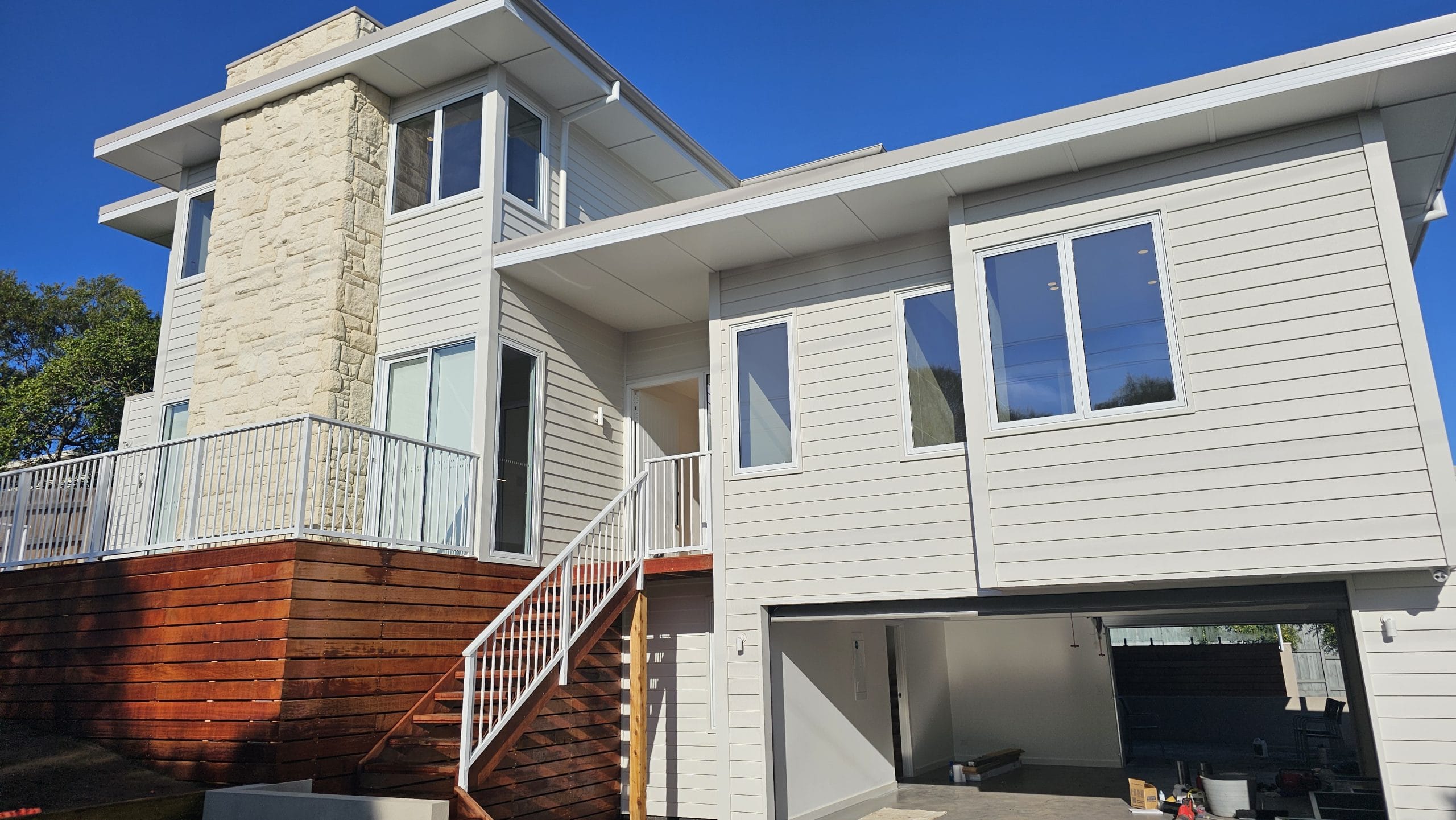
735 Melbourne Road Main Image

QR Code Link to Instructions

Link to this page

System Info and Instructions

735 Melboure Rd Sorrento

Customer: Mark and Sue Cautley

Straight Forward Technology Logo
Installed by Straight Forward Technology

Rowler Construction

➕ Available Upgrades & Future Options
SF Logo

⭐ Recommended Now

🛡️ Alarm SIM Card Backup – $88/year

Ensures your alarm system continues to work even if internet connection fails. Highly recommended for reliable security monitoring.

🚀 FTTP Internet Upgrade

Fiber to the Premises is available at this address. Upgrade from current 50Mbps to much faster speeds for improved streaming, working from home, and overall internet performance.

🚪 Smart Access Control Add-ons

When Gate Motor is Installed:

  • 🔓 AX Pro Relay for Gate – Control via Hik-Connect app
  • 📍 Gate Open/Close Sensor – Know gate status remotely

Garage Door Automation:

  • 🚗 AX Pro Relay for Garage – Remote control via app
  • 📍 Garage Door Sensor – Monitor if door is open/closed

Benefits: Let in deliveries remotely, ensure everything is secured when away

🔔 Video Intercom Systems

Front Gate Intercom:

Gate Intercom
  • 📞 Calls your phone even when not home
  • 🚪 Control gate remotely
  • 📹 Acts as 5th camera on security system (2MP)
  • 🔧 Surface or flush mount options

Front Door Intercom:

Front Door Intercom
  • 📞 Calls your phone even when not home
  • 📹 Acts as additional camera on security system (2MP)
  • 🔗 Integrates with Hik-Connect app

🎵 Entertainment System Add-ons

Sonos Move – Portable Speaker:

Sonos Move

Perfect for BBQ area or poolside – portable premium sound that integrates with your existing Sonos system

📹 Additional CCTV Cameras

Your NVR has 8 channels with only 4 currently in use

Add up to 4 more cameras for enhanced coverage

Note: Additional cameras depend on existing cable locations or running new cables

📡 WiFi & Network
SF Logo

📶 WiFi Networks

🏠 Main Network

Network Name: Cautley 735

Password: Medwin735

✅ Use this network for all new devices and guests

🔄 Auto-Connect Network (Gisborne Match)

Network Name: TelstraBACAB4

Password: rj3sz8xpcq

📱 Devices from Gisborne will automatically connect

🏗️ Legacy Network (Being Phased Out)

Network Name: Cautley WiFi

Password: Forward1

⚠️ Some devices still connected – can be deleted once all devices moved to Cautley 735

🔧 Network Infrastructure
TP-Link Omada System

Professional TP-Link Omada unified network system provides reliable coverage throughout the property

📍 Central Hub Location:

19-inch data rack installed under the stairs – the brains of your entire system

📱 Optional: TP-Link Omada App
For advanced network management: iOS App Store | Google Play

⚙️ Technical Information (Network)

🔧 System: TP-Link Omada SDN

🖥️ Router: ER7212PC v1.0 (All-in-one router/controller/switch)

📡 Access Points:

  • • Front Office (under desk) – EAP655-Wall(EU)
  • • Living Room – EAP610(EU)
  • • Outdoor – EAP610-Outdoor(EU)
  • • Pool Room – EAP610(EU)
  • • Upstairs TV Room – EAP610(EU)

🌐 Management: Unified through Omada controller

🌐 Internet Connection
SF Logo

Current Speed: 50Mbps

🏢 ISP: Telstra

📌 Note: Fiber to the Premises (FTTP) is available at this address. See upgrade options above for faster speeds.

⚙️ Technical Information (Internet)

📍 Termination Point: 19-inch rack under stairs

🔄 Future Option: Upgrade to FTTP for improved speed and reliability
🔐 Security
SF Logo

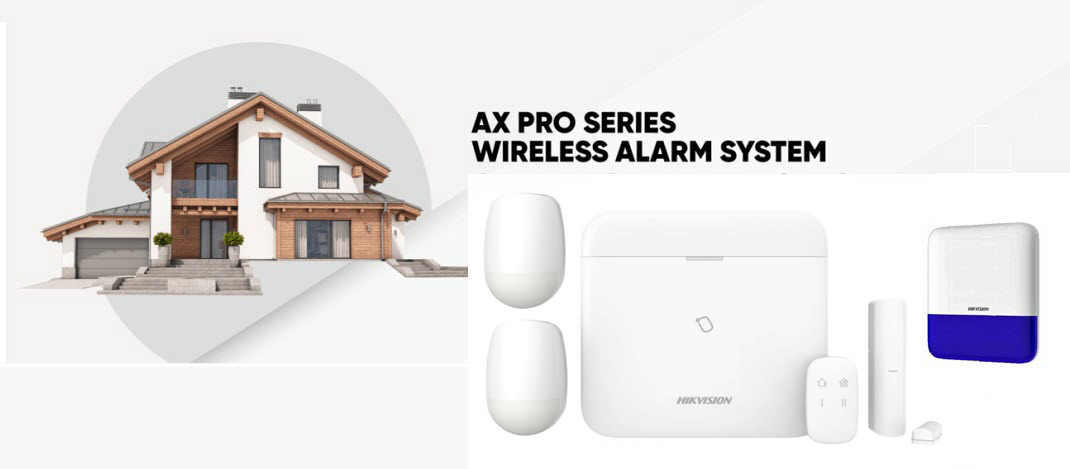
🚨 Hikvision AX Pro Alarm System
Hikvision AX Pro System

Professional wireless alarm system with app control via Hik-Connect

📱 Download Hik-Connect App:
iOS App Store |
Also available on Google Play

🔑 Keypad Operation:

AX Pro Keypad
  • 💡 To wake keypad: Just cover with your hand
  • 🏠 Stay Mode: Arms everywhere EXCEPT master bedroom
  • 🚪 Away Mode: Arms entire property

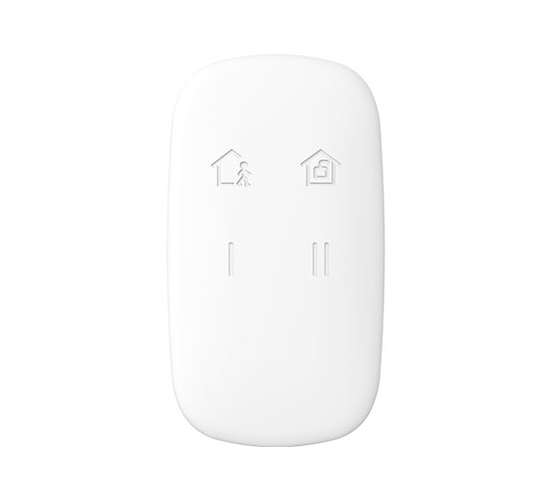
🎛️ Optional Keyfob:

AX Pro Keyfob
  • 🚨 Includes panic button for emergencies
  • 🚪 Can control gates/doors with optional relay add-on

📱 Remote Access:

  • Arm/disarm from anywhere using Hik-Connect app
  • Receive instant notifications if alarm is triggered
  • Check system status remotely

👥 Adding Users:

In app: 3 dots next to alarm → Settings → User Management → Add User

User type: “Operator” for permanent access or “One Time Code”

Alarm can be shared with anyone who has a Hik-Connect account

🏠 Special Notes:

✅ Master bedroom motion detector LED has been disabled for better sleep

⏱️ Entry delays: Front door 30 sec, Garage 60 sec

⚙️ Technical Information (Alarm)

🔧 System: Hikvision AX Pro Wireless System

📱 App: Hik-Connect (iOS and Android)

📡 Communication: WiFi primary, optional SIM backup

🎛️ Main Panel: DS-PWA96-M-WB/12V

📍 Zone Configuration:
  • • Zone 1: Kitchen
  • • Zone 2: Front Door (30 sec delay)
  • • Zone 3: Front Door Keypad
  • • Zone 4: Garage Keypad
  • • Zone 5: Garage (60 sec delay)
  • • Zone 6: Indoor Siren (Hub)
  • • Zone 7: Master Bedroom
  • • Zone 8: Pool Room
  • • Outdoor Siren

📹 HiLook CCTV System
HiLook CCTV System

Professional CCTV system by Hikvision for comprehensive property surveillance

📱 Remote Viewing:

  • View live cameras from anywhere via Hik-Connect app
  • Review recorded footage
  • Receive motion detection alerts
⚙️ Technical Information (CCTV)

🔧 System: HiLook by Hikvision

📱 App: Hik-Connect (same app as alarm)

💾 Recording: 8-channel NVR (4 channels used) in comms rack

📷 Camera Locations:
  • • Driveway
  • • Living Room
  • • Pool Area
  • • Front of Property

Note: Intercoms can also function as additional cameras

📺 Televisions
SF Logo

Premium LG TVs throughout the property with smart features

📺 TV Locations & Features

📱 Download LG ThinQ App:
iOS App Store | Google Play
Turn TV on/off, control settings remotely

🏠 TV Locations:

  • Living Room: LG TV with Sonos Arc Ultra
  • Pool Room: LG TV with Sonos Playbar and Subwoofer
  • Master Bedroom: LG TV on swivel bracket (can be angled toward bed)
  • Upstairs TV Room: LG TV

🔊 Soundbar Integration:

  • 📺 TV remote or LG ThinQ app automatically controls soundbar volume
  • 🎵 If music is playing on soundbar, it automatically switches to TV audio when TV turns on

📡 Features:

All TVs have free-to-air channels via antenna system

AirPlay compatible – stream from your iPhone/iPad

⚙️ Technical Information (TV)

📡 Antenna: Distributed via 6-way splitter in comms rack

📱 Smart Features: LG ThinQ app for advanced control

Sonos LogoSonos Audio System
SF Logo

Premium multi-room audio with Sonos throughout the property

🔊 Sonos Equipment

📱 Download Sonos App:
iOS App Store | Google Play
Control all your Sonos speakers from one app

🏠 Sonos Equipment by Room:

  • Living Room: Sonos Arc Ultra soundbar (connected to 85″ TV)
  • Pool Room: Sonos Playbar + Sonos Sub

✨ Key Features:

  • 🔊 HDMI ARC – TV remote controls soundbar volume automatically
  • 📱 AirPlay 2 compatible – stream from any Apple device
  • 🎵 Multi-room audio – play same or different music in each room

Spotify LogoSpotify Connect Guide

The easiest way to play music in different areas of your home!

📱 How to Use Spotify Connect:

  1. Open Spotify and play something
  2. Tap the speaker icon at the bottom of the screen
  3. Choose your Sonos speaker or TV

Note: All devices need to be on the same WiFi when connecting for the first time

🔧 Troubleshooting Tips:

  • • Restart the Spotify app if devices don’t appear
  • • Ensure all devices are on the same WiFi network
  • • iPhone users: Enable Local Network access in Settings → Spotify

📖 Full Guide: support.spotify.com/au/article/spotify-connect/

🔗 Group & Ungroup Rooms

Play the same music throughout your home or different music in each room

🎛️ Using Physical Controls:

Press and hold the Play/Pause button on any Sonos product to group it with another room that’s playing

📱 Using the Sonos App:

  1. Select the Grouping icon in your Now Playing bar (bottom of screen)
  2. Check or uncheck rooms to add/remove them from the group
  3. Select “Apply” to save your changes

🔊 Volume Control:

  • • Adjust volume for entire group using main volume slider
  • • Tap volume slider to show individual room volumes
  • • Set volumes in Grouping menu before applying changes

💡 Tip: Select “Everywhere” to quickly group all speakers together for parties!